Agents and tabs
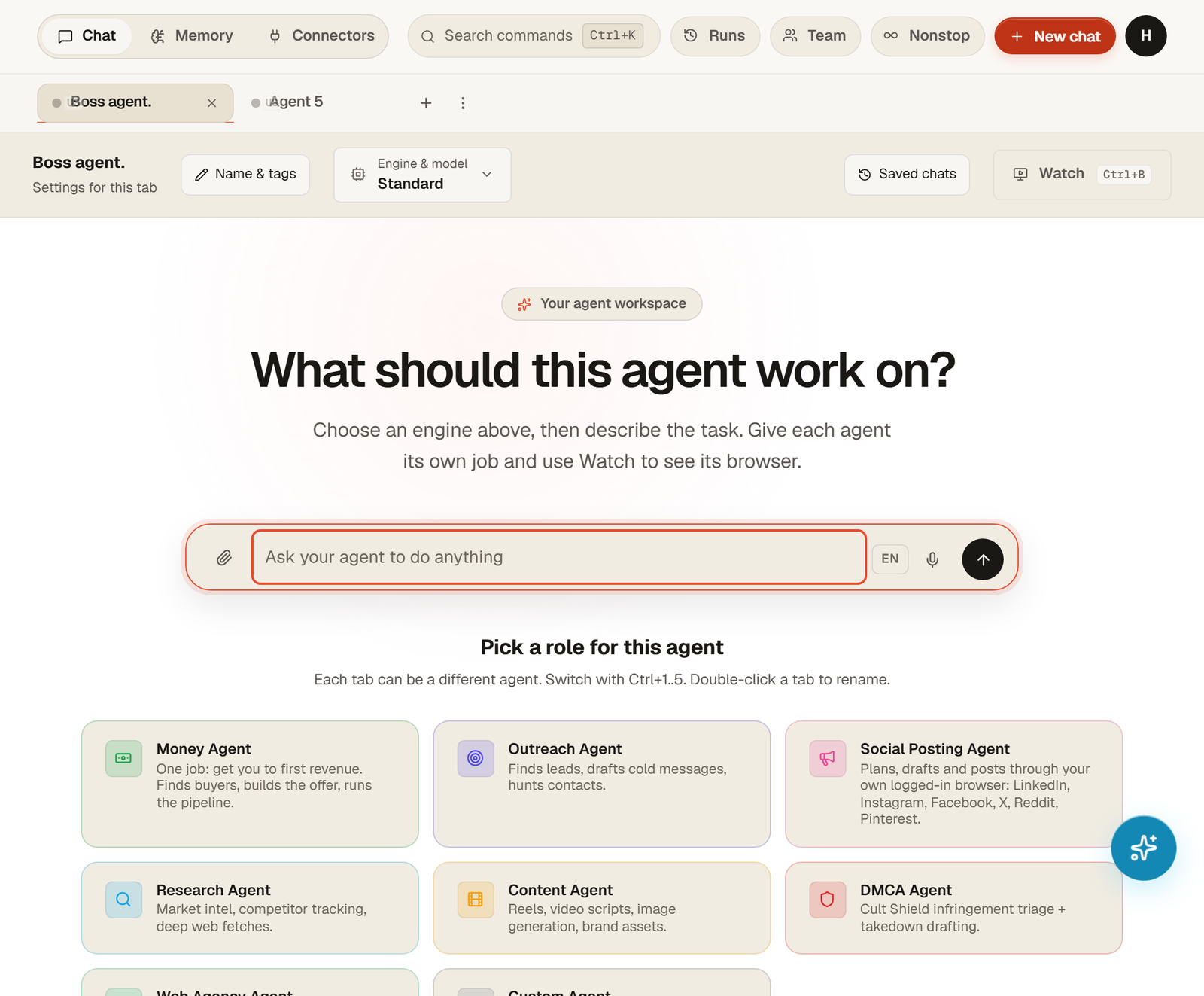
The agent page is where you work with your agents. Every tab is its own agent: its own conversation, its own working folder, its own browser profile and its own role. This guide walks through the page, control by control, on screenshots from a live workspace.
The page at a glance
 1
2
3
4
5
6
1
2
3
4
5
6
- 1Top bar: Chat, Memory and Connectors switch pages; Search commands (Ctrl+K) opens the command palette; Runs, Team and Nonstop open panels; New chat clears the current conversation.
- 2Tab row: each tab is an agent. The plus adds one, the dots open tab actions, the cross closes a tab.
- 3Settings for this tab: Name and tags, Engine and model.
- 4Composer: attach files, type the task, switch the reply language, dictate, send.
- 5Pick a role: one click gives the agent a ready-made job description. You can still change everything in chat.
- 6Saved chats and Watch belong to the selected tab.
Tabs
Press Ctrl+T or click the plus to open a new agent, up to five per workspace. Switch with Ctrl+1 to Ctrl+5. Double-click a tab to rename it. Each tab keeps its own conversation, its own files under the workspace, its own browser profile with its own sign-ins, and its own proxy if you assign one in Settings. Closing a tab does not delete its saved conversations; they stay in Saved chats and in Runs.

Give the agent a name and a role
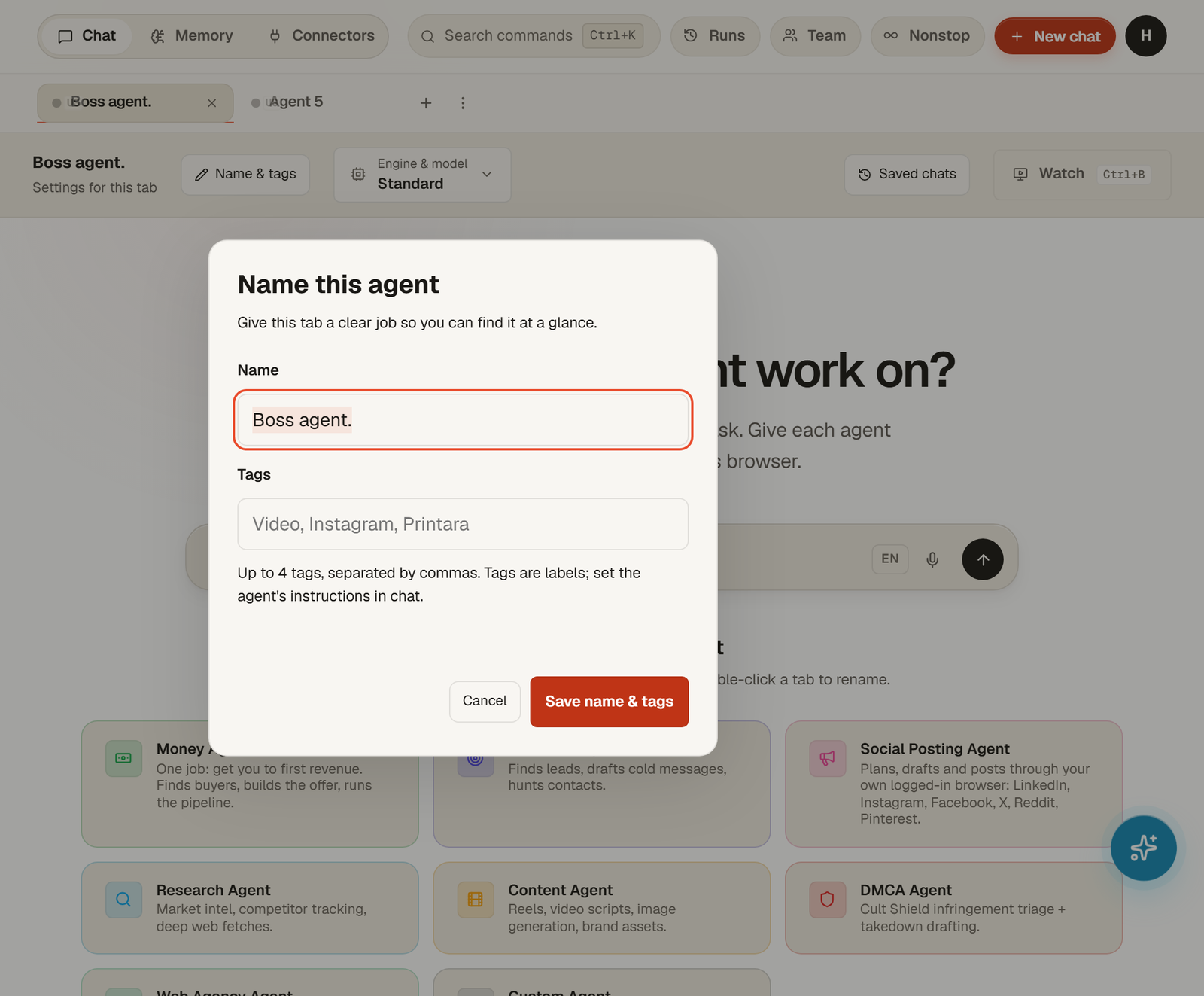
Name & tags opens a small dialog: a name you will recognise and up to four tags separated by commas. Tags are labels for you; they do not change what the agent does. The job itself comes from the role card you pick on a fresh tab, or from what you tell the agent in chat. A good name says the channel or the job, for example "Facebook groups" or "Video editor", because the supervisor in the Team panel routes work by these roles.
Engine and model
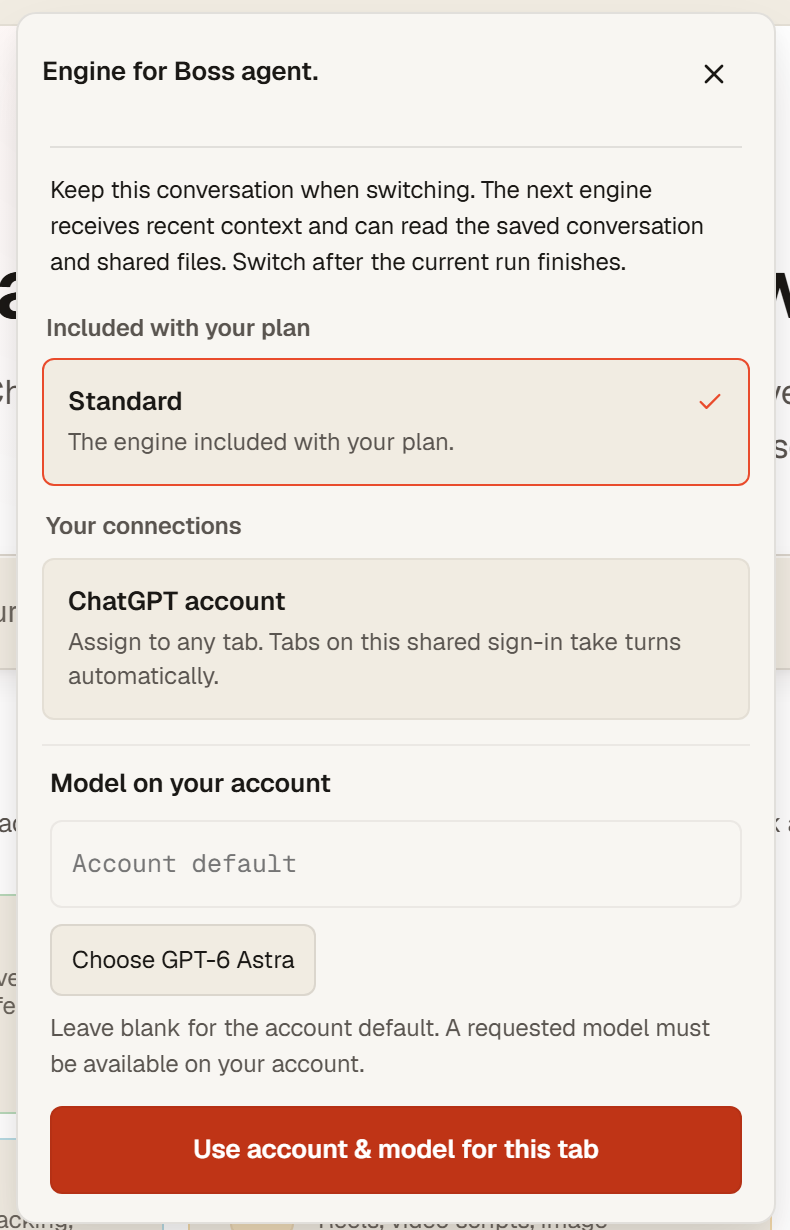
Engine & model decides which account the tab runs on. Standard is the engine included with your plan. Under Your connections you see the accounts you connected in Settings, for example your own ChatGPT account; assign it to any tab. Tabs that share one sign-in take turns automatically, so two tabs on the same account run one after the other. Model on your account is optional: leave it blank for the account default, or pick a model that your account offers.
Switching keeps the conversation. The next engine receives the recent context and can read the saved conversation and shared files. The switch happens after the current run finishes, so press it any time.
 1
2
3
4
1
2
3
4
- 1Standard: the engine included with your plan.
- 2Your connections: accounts you connected in Settings. Tabs on one shared sign-in take turns.
- 3Model on your account: blank means the account default.
- 4Use account and model for this tab: saves the choice for this tab only.
Talking to the agent
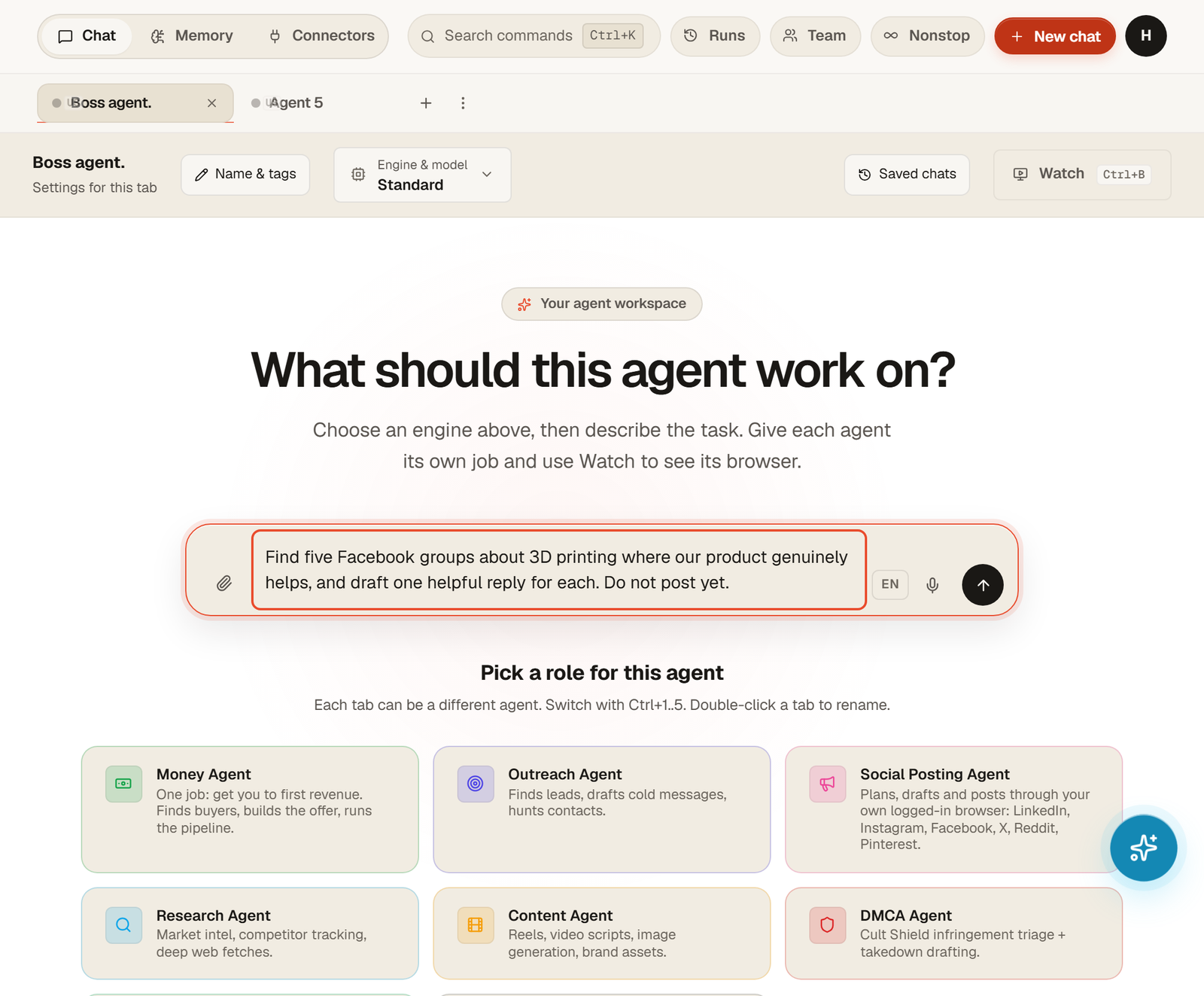
Type the task in the composer and send it. Say what the finished result looks like and where it should go: a file, a link, a post. The agent works in its own workspace, shows what it is doing and asks when it needs you. Stop ends the current run; the conversation stays. The paperclip attaches files, EN switches the language the agent replies in, the microphone dictates.
New chat and Saved chats
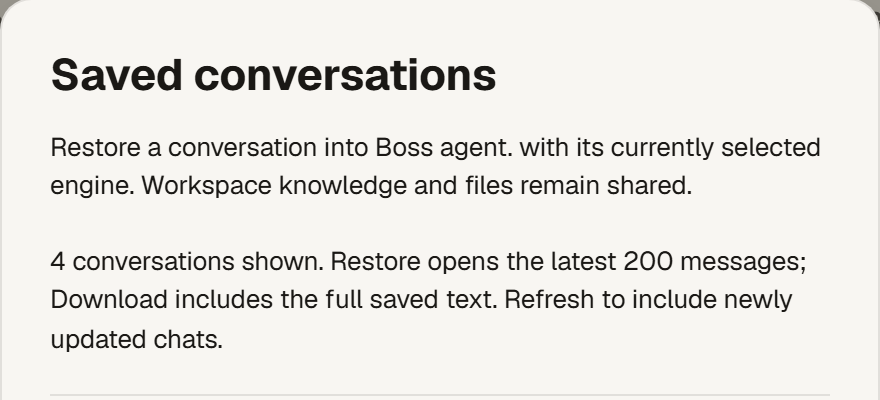
New chat clears the current conversation of the selected tab. Nothing is lost: the run stays in Runs and the conversation is saved. Saved chats lists those conversations. Restore opens one back into the tab, on the engine the tab currently uses, with the latest 200 messages; Download gives you the full saved text; Load older conversations and Refresh do what they say. Workspace knowledge and files are shared, so a restored conversation finds the same files it had.
Command palette and VS Code
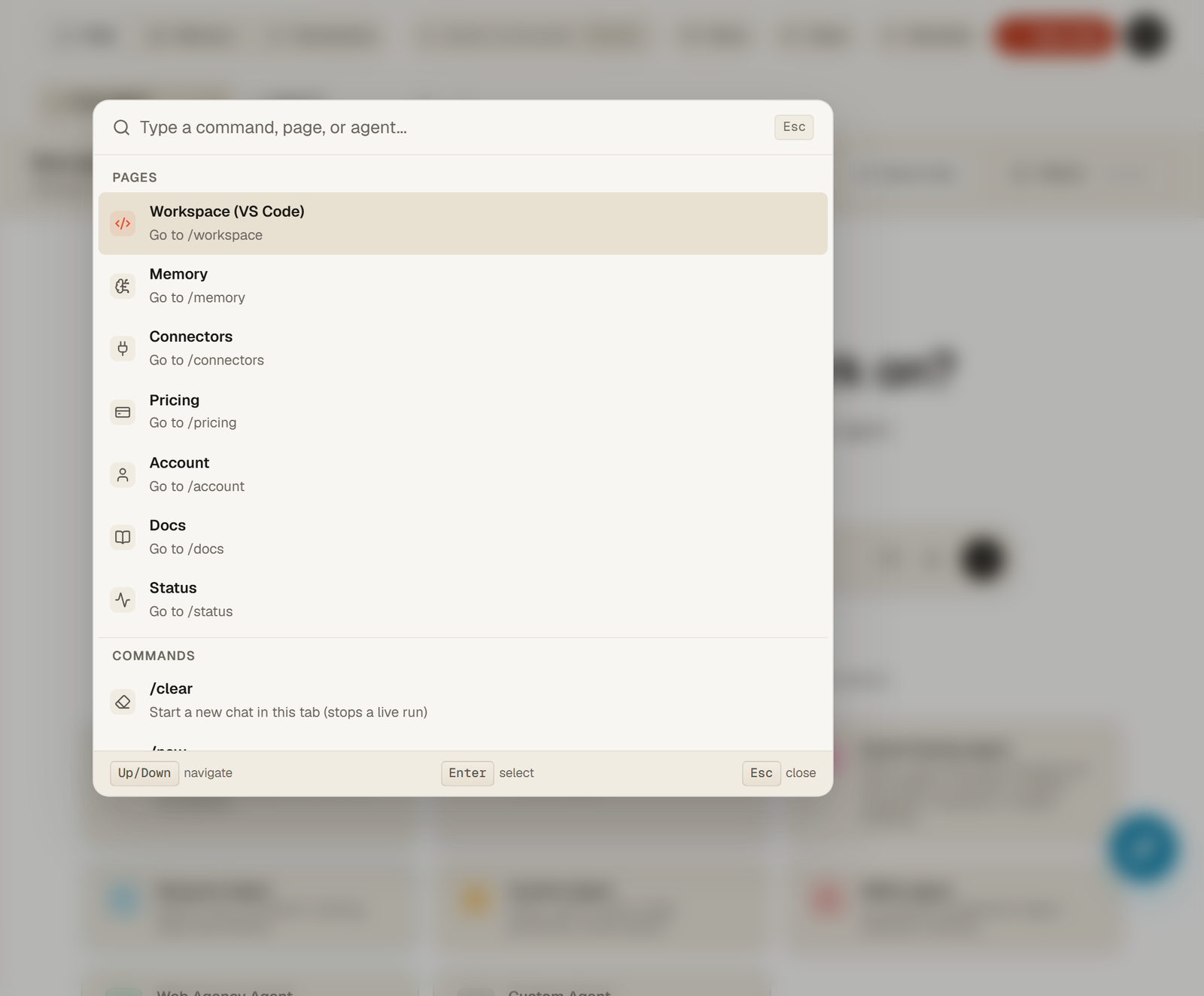
Ctrl+K opens Search commands: jump to a page, an agent or a command by typing a few letters. Open in VS Code in the bottom left opens the same workspace in a full editor. It is the advanced route: everything the agent wrote is there as files, and everything you put there is visible to the agents.
On a phone
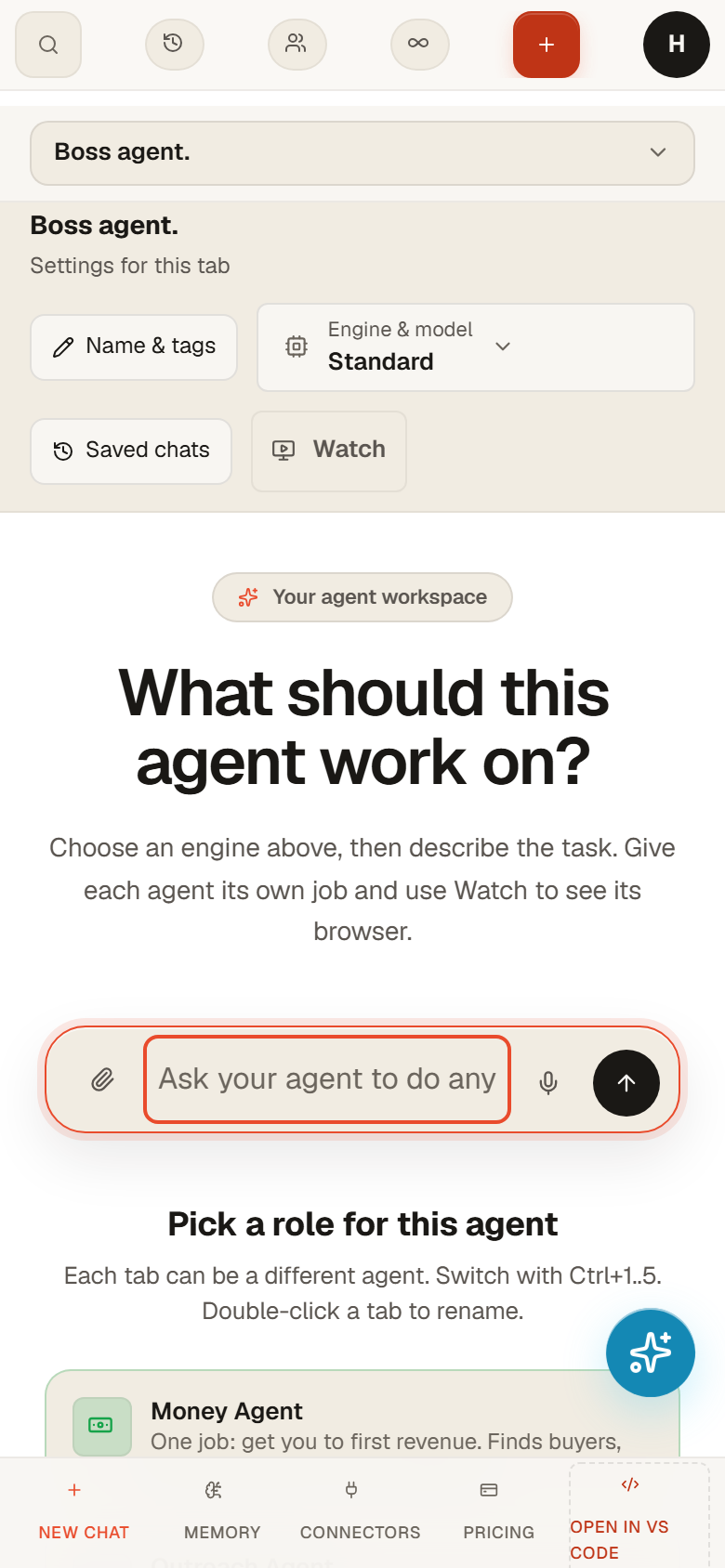
The same page fits a phone: tabs and tab settings stack on top, the composer stays at hand, and Watch opens full width. Everything you do on the phone is the same agent and the same workspace.
Questions
Do agents share files and memory?
Files in the workspace and the knowledge library are shared by all tabs. Conversations, browser sign-ins and proxies are per tab.
Why did my ChatGPT tab say Queued?
Two tabs on the same connected account take turns. The second one waits for the first to finish and then starts on its own. Give the second tab a different account or switch it to Standard if you want them in parallel.
The agent asks me to sign in again.
Its connected account was signed out on the provider side. Open Settings, Connections, and connect the account again; for a Claude account use Connect Claude Account in the avatar menu. The conversation is kept.
Can I have more than five agents?
Five tabs per workspace is the current limit. Use the Team panel to have one of them coordinate the others instead of opening more.