Watch the agent browser
Every agent has a real browser of its own, with its own profile, cookies and proxy. Watch shows you that browser live, so you see exactly what the agent sees, and you can step in: sign in to an account once, check a page, or take over for a moment.
Open and close Watch
Click Watch in the tab settings row or press Ctrl+B. The live view opens on the right; the button turns into Hide Watch. The view follows the selected tab, so switching tabs switches the browser you see.

The live view
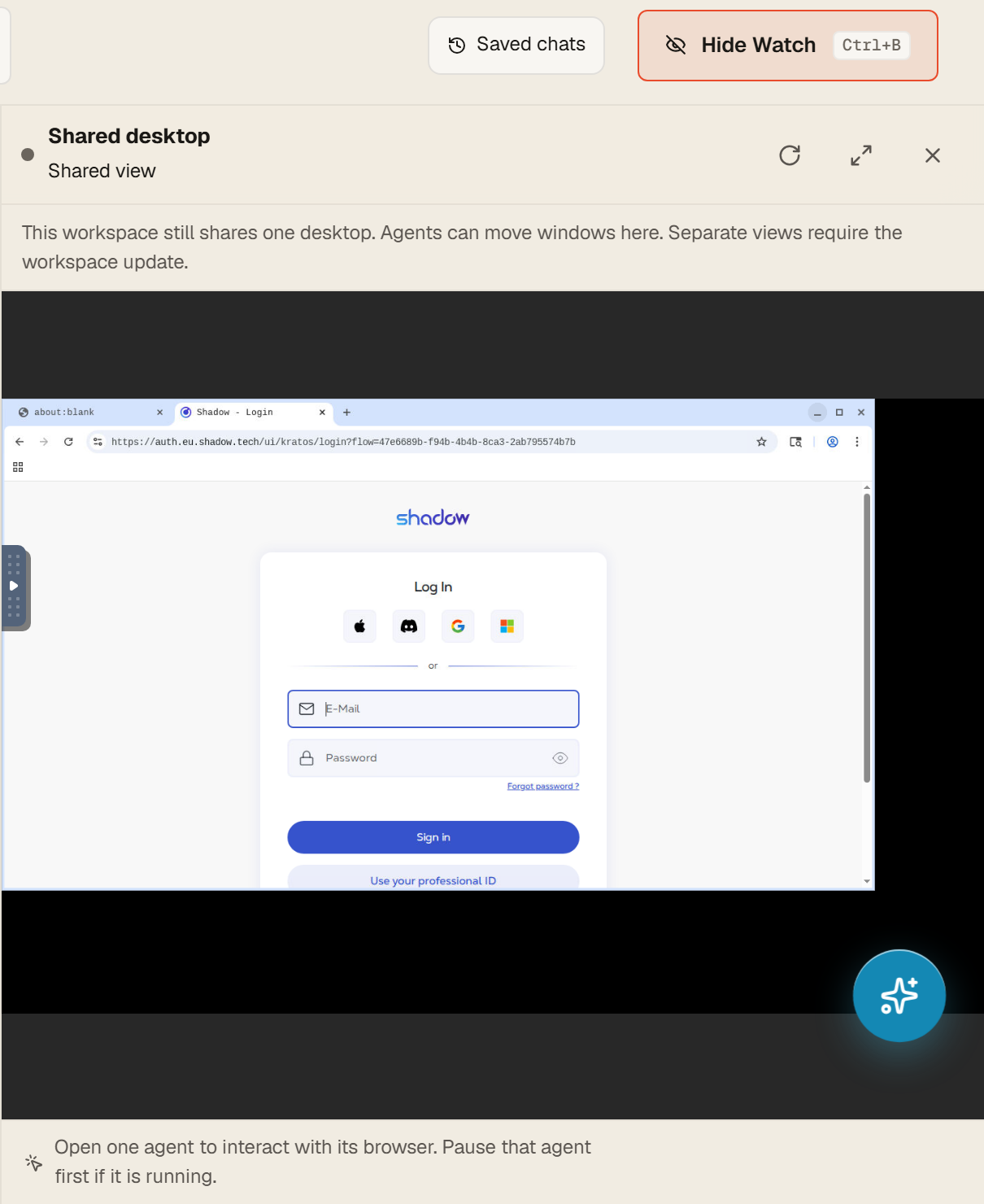 1
2
3
4
1
2
3
4
- 1Header: which view you are looking at. Some workspaces still share one desktop for all agents; the notice says so.
- 2Reconnect live view, Fullscreen browser view, Close.
- 3The agent's browser, live. Click into it to type or click yourself.
- 4Open one agent to interact with its browser. Pause that agent first if it is running, so you do not fight over the mouse.
Follow tabs keeps the browser window of the active tab in front: switching tabs brings that agent's browser forward. Turn it off to keep looking at one browser while you work in another tab. If the view stalls, Reconnect live view rebuilds the stream without touching the agent.
Signing in to your accounts
- Select the tab whose agent should use the account, for example your Instagram agent.
- Open Watch. If the agent is running, press Stop first.
- Click into the live browser, open the site and sign in as you normally would. Two-factor codes work the same way.
- Close Watch. The session lives in that agent's browser profile; no other tab sees it.
Agents post, comment and read through this logged-in browser. When a site signs the agent out, the agent tells you in chat and in notifications, and you repeat the steps above.
What the agent browser is
- One browser per tab, with its own profile. Cookies, sessions and downloads of one agent never mix with another's.
- Its own network route: assign a proxy per tab under Settings, Network. Restart browser (applies new proxy) restarts only that agent's browser.
- Browsers that nobody watches and no run needs are closed after a while to save resources and reopened on the next run or the next Watch. Sign-ins are kept.
- The browser runs on the server, not on your computer. Closing your laptop changes nothing for the agent.
Questions
Watch shows a black screen or "No live view yet".
The agent's browser is not up yet. Send the agent a task that uses the browser, or wait a few seconds after opening Watch; the browser starts on demand. Reconnect live view if it stays blank.
Can I use the mouse while the agent works?
You can, but you will both be driving the same browser. Stop the agent first, do what you need, then continue the conversation.
Does the agent see my own browser?
No. It only has the browser you see in Watch. Your computer and your personal browser are never touched.