Team and goals
The Team panel is where you give your agents one goal, the supervisor agent splits it into tasks for the other agents, and results are closed on evidence. This guide shows exactly what you see in the app, on screenshots taken from a live workspace.
Who does what
Tell your supervisor what each agent should do in chat. The supervisor can save goals and assign the work. You can pause, resume or cancel a goal at any time. When the supervisor is unavailable, you accept results yourself.
You do not have to hand out tasks by hand. That is the supervisor's job.
One agent in the team. In the screenshots below the supervisor tab is named "Boss agent." It plans a task for every criterion, assigns tasks to workers, reads their results and accepts or reopens criteria.
It cannot approve its own work. It cannot swap the goal for another one to escape the limits.
The other agents. Each owns a channel through its tab role: Instagram, Facebook groups, AI content, video. A worker receives a task, does it and hands in a result with evidence.
A worker does not see the whole goal. It sees its task and the criterion the task belongs to.
Six steps from setup to a completed goal
You · once
1. Open the Team panel and set up the team
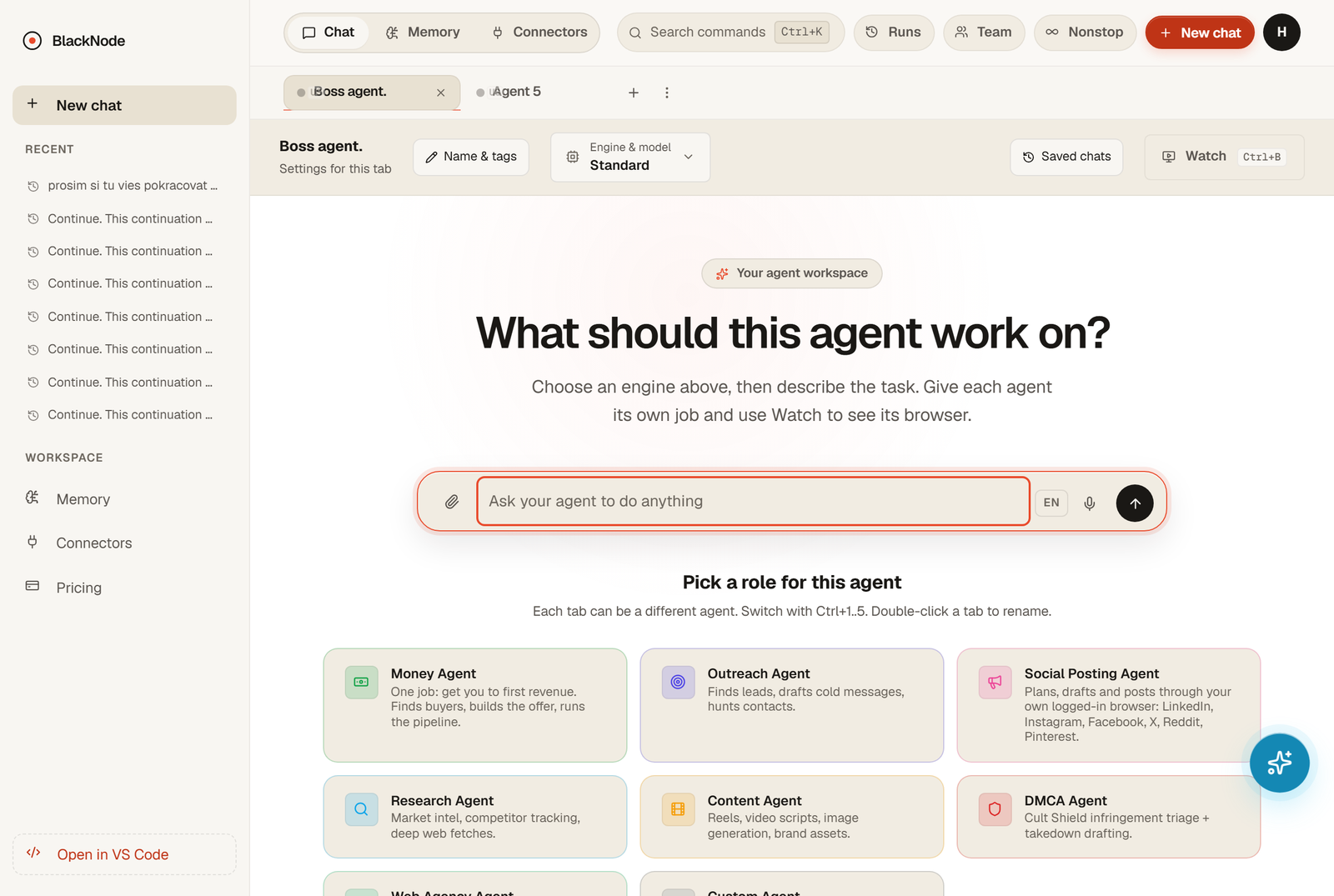
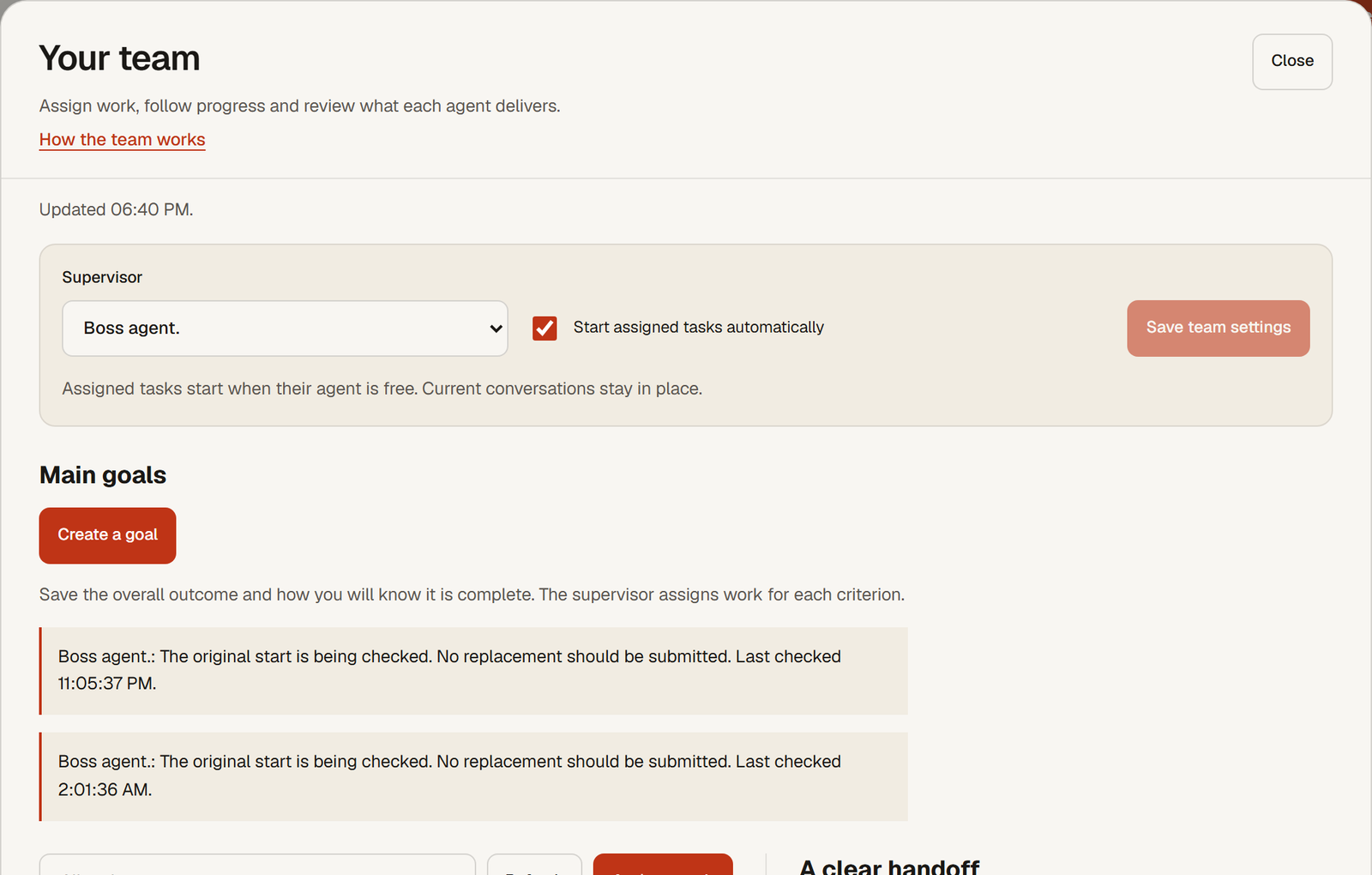
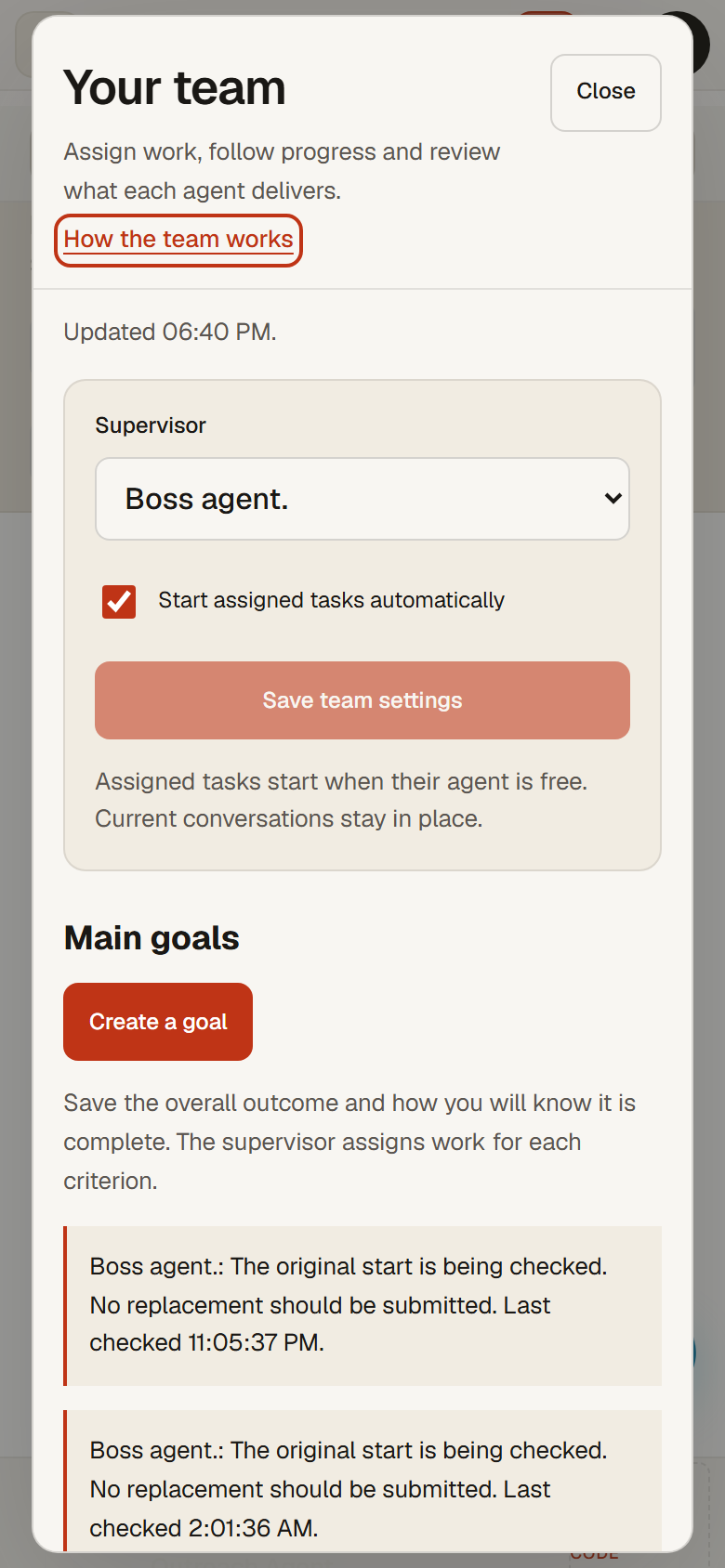
In the agent view click Team in the top bar, next to Runs. Choose Talk to supervisor and describe the work in chat. For first-time setup, open Advanced settings. In the Supervisor block pick the supervisor and keep Start assigned tasks automatically checked. Without it the supervisor prepares tasks but never starts them. Save with Save team settings.
 1
1

You
2. Create the main goal
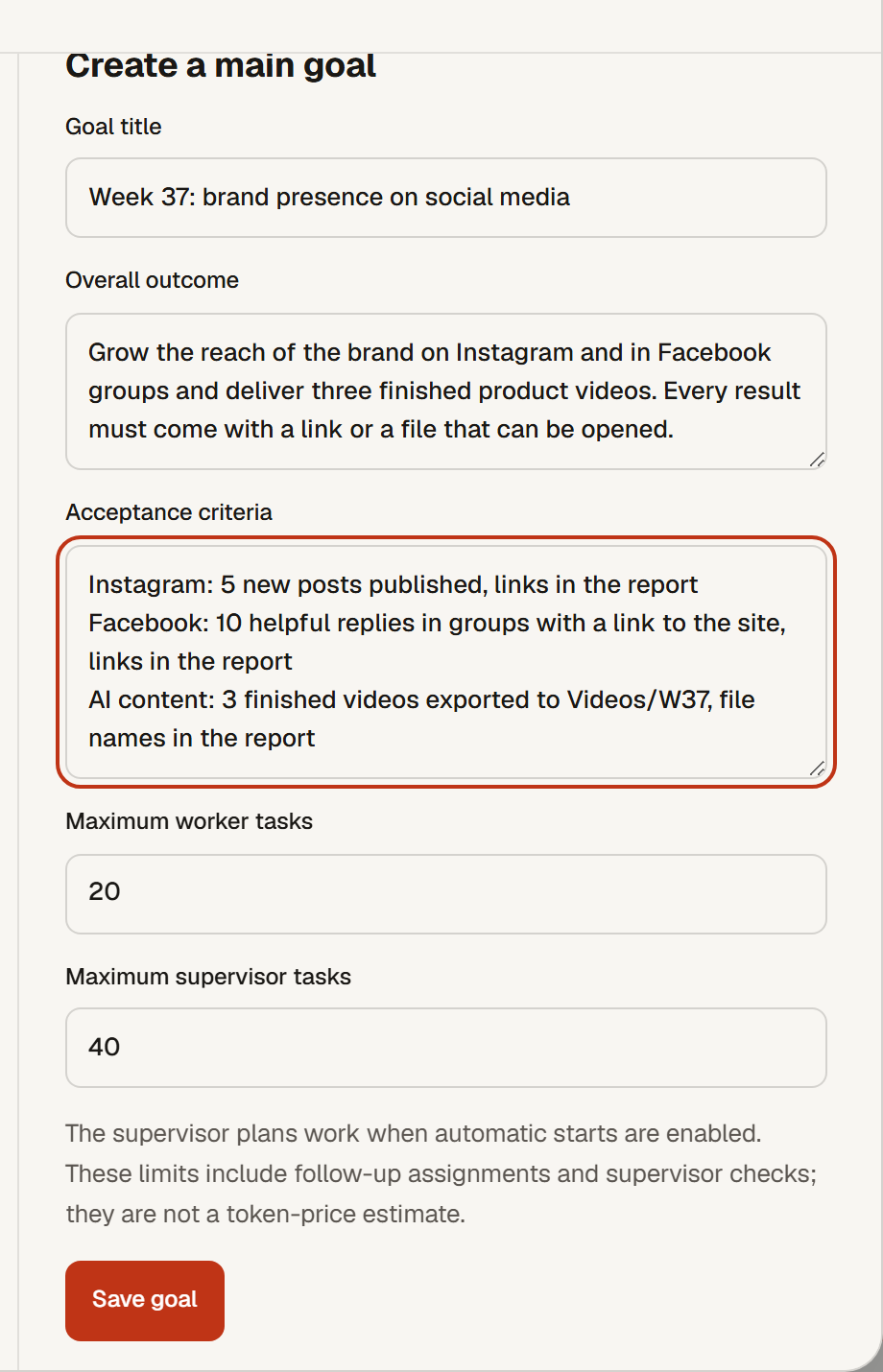
Normally, describe the work in the supervisor chat. You can give each agent a different job and say whether to keep going until Stop. Saved goals appear under Your team's work. If you prefer to configure a goal yourself, open Advanced settings → Create a goal. The optional form includes:
- Goal title: the finished result, not an activity. For example "Week 37: brand presence on social media".
- Overall outcome: what the team must deliver and how it will be checked.
- Acceptance criteria: one criterion per line, measurable, with evidence that can be opened (a link, a file, a number). Up to 12 lines.
- Maximum worker tasks and Maximum supervisor tasks: how many tasks the workers and the supervisor may use in total. These are task counts, not a token price. The defaults of 20 and 40 cover a week with three channels.
Save with Save goal. The goal appears in Your team's work with its status and the number of accepted criteria.
 1
2
3
4
5
1
2
3
4
5
- 1Goal title: the finished result.
- 2Overall outcome: what the team delivers and how it is checked.
- 3Acceptance criteria: one line is one criterion is one channel.
- 4Task limits for workers and for the supervisor.
- 5Save goal. Only now does the goal exist.
Supervisor · automatic
3. The supervisor splits the work: one task per criterion
On its next run the supervisor reads the goal and, for every open criterion, assigns a task to the agent whose role matches the channel. The task carries a title, exact instructions and a reference to the criterion. With the scheduled team check that happens within about 15 minutes.
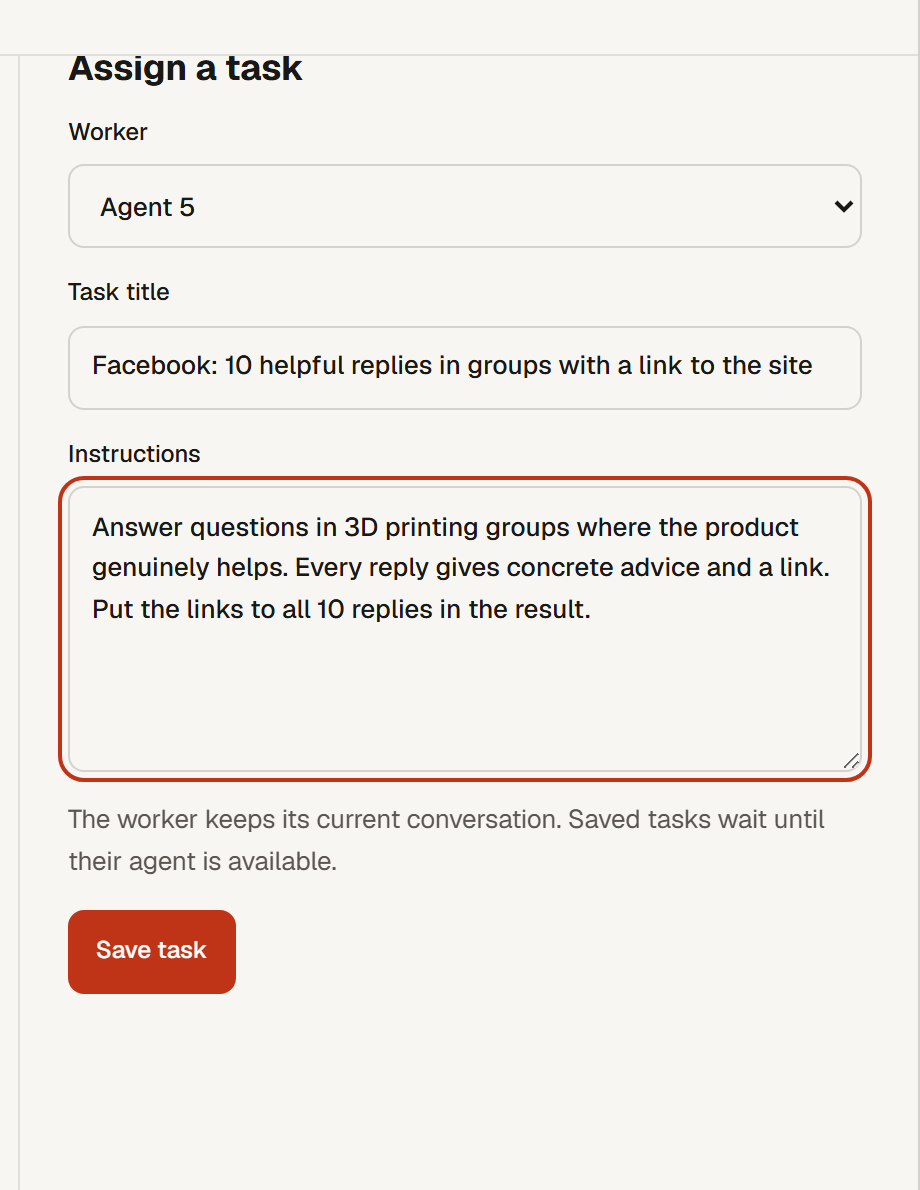
You can do the same by hand with Assign a task: pick the Worker, write a Task title and Instructions, save with Save task. The worker must be a different agent than the supervisor.
 1
2
3
4
1
2
3
4
- 1Worker: the agent that receives the task. Never the supervisor.
- 2Task title: best kept identical to the criterion it belongs to.
- 3Instructions: exactly what to do and what the report must contain.
- 4Save task. The task waits until the agent is free, then starts on its own.
Worker
4. The worker does the task and hands in a result with evidence
The task runs as an ordinary run in that agent's tab. The agent keeps its ongoing conversation. At the end it records a result: what it did and where the evidence is. A result without evidence cannot be accepted. A finished run on its own proves nothing, and that is by design.
The Team tasks list shows every task, its worker and its state: waiting, running, awaiting review, Accepted, Cancelled. Click a task to open its instructions, progress and result on the right.
Supervisor · automatic, or you
5. Review the result and accept the criterion
The supervisor opens the result, checks the evidence (opens the links, looks at the files) and accepts it with Accept result, or sends it back with a note on what must change. It then attaches the accepted result to the criterion with Accept criterion and writes down what it verified. A criterion stays open until it has an accepted result.
If the supervisor is unavailable, you do the same: open the task, Review result, then Accept criterion in the goal detail. An agent never approves its own work; the panel refuses it.
 1
2
3
1
2
3
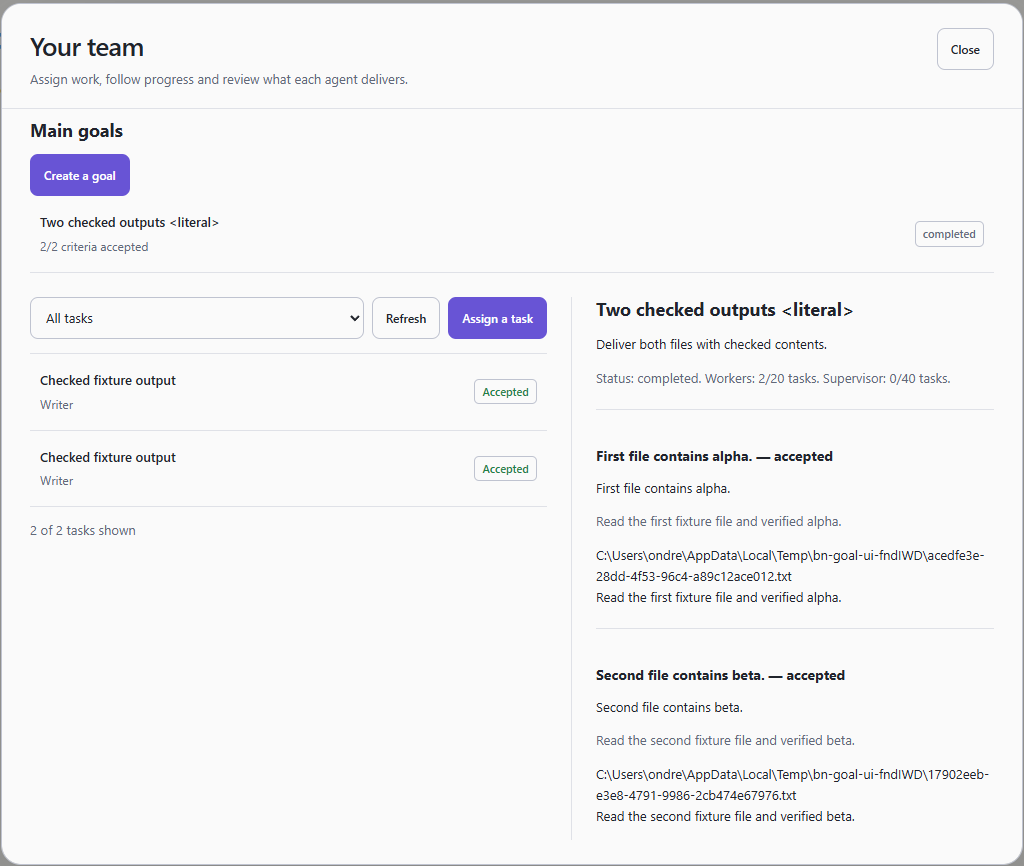
- 1Goal row: 2/2 criteria accepted, status completed.
- 2Goal status and limit usage: how many tasks the workers and the supervisor used out of the allowed number.
- 3Each criterion with the worker's evidence and the reviewer's note.
You · any time
6. Choose a finished outcome or ongoing work
Choose Keep working until I stop it for a standing assignment. Each criterion becomes an independent duty, with checked output in each cycle and a minimum interval before its next cycle. Finishing one cycle keeps the assignment active. The server starts due work even when you close the app. Channel restrictions, account access and your instructions still apply.
For a finite goal, all criteria must be accepted before it completes. Finite task limits cover the whole goal; ongoing limits cover a rolling 24 hours. An unfinished task still reserves capacity. Known cooldowns can be stored with a resume time; other independent duties can continue while one is blocked.
Pause goal prevents new tasks; running ones remain tracked. Resume goal continues. Cancel goal ends the assignment. Use the agent's Stop control to interrupt its current run and pause its saved assignments, including between cycles. Only you can resume a paused assignment.
 1
2
3
4
5
1
2
3
4
5
- 1Team settings: supervisor and automatic starts.
- 2Main goals: the Create a goal button and the list of goals with their status.
- 3Supervisor notices about scheduled starts (explained in the table below).
- 4Team tasks: filter, Refresh, Assign a task and the task list with states.
- 5Detail column: click a task or a goal and its instructions, progress, result and criteria show here.
Example: one goal, one criterion per channel
You can copy this into the form. Which agent gets which criterion is decided by the supervisor from the agents' roles, so the tab roles must say who owns which channel.
- Instagram: 5 new posts published, links in the report worker: Instagram agent
- Facebook: 10 helpful replies in groups with a link to the site, links in the report worker: Facebook agent
- AI content: 3 finished videos exported to Videos/W37, file names in the report worker: AI content agent
Panel messages and what to do about them
| Message | What is happening | What to do |
|---|---|---|
| The original start is being checked. No replacement should be submitted. | A scheduled supervisor start is being verified. The system deliberately does not send a second one, so nothing starts twice. | Nothing. This is information, not an error. "Last checked" moves with every check. |
| Automatic starts are paused. | The supervisor prepares tasks but does not start them. | Supervisor block: check Start assigned tasks automatically, then Save team settings. |
| This goal is paused. | You or Stop paused the goal. New tasks do not start. | Resume goal when you want to continue. |
| The goal has reached a task limit. | The worker or supervisor task budget is used up. | Ongoing work resumes as its rolling daily allowance becomes available. Review finite goal limits with the owner; do not create duplicate goals to bypass them. |
| This criterion is blocked or already accepted. | No new task can be assigned to this criterion. | Reopen criterion if it was blocked by mistake. Accepted criteria do not change. |
| The remaining criteria need input before work can continue. | Every open criterion is blocked; the supervisor needs your answer. | Open the goal detail, read the reasons and answer the supervisor in its tab. |
| The supervisor ended without assigning more work. | The supervisor finished a run without new tasks although criteria are open. | Check the agents' roles and the open criteria, or assign a task by hand. |
| An earlier action has an uncertain outcome. | A worker action ended unclearly, for example a send without confirmation. | Wait for reconciliation, or check the result yourself and decide. |
| Choose a worker other than the supervisor. | You tried to give the task to the supervisor. | Pick another agent. |
| An agent cannot approve its own work. | The same agent would be reviewing itself. | Review the result yourself, or set a different supervisor. |
Questions
Does every agent have its own goal?
No. A goal belongs to the team and only the supervisor works with it. Agents receive tasks. If you want every channel to have its own line, give it its own criterion inside the shared goal.
Why do I only see goals next to the supervisor?
Because only the supervisor may read the goal and plan from it. Workers see their task and the criterion it belongs to, not the whole goal.
Can I have several goals at once?
Yes. For clarity, one shared goal per week or per campaign, with one criterion per channel, is easier to follow.
Why is the supervisor not doing anything?
- Automatic starts are off (Supervisor block).
- The goal is paused or has reached its task limit.
- Every open criterion is blocked and waits for you.
- The agents' roles do not say who owns which channel, so the supervisor cannot route the work.
- The supervisor acts on its next run. With the scheduled team check that is within about 15 minutes.
What counts as evidence?
Anything that can be opened and verified: a link to a published post, a message id, a file in a folder, a number from a dashboard. An opened page, a plan, or "done" without a link is not evidence, and the supervisor should not accept it.
Who closes a criterion when the supervisor is unavailable?
You. Open the task, click Review result, then Accept criterion in the goal detail. The panel tells you that you are acting in place of the supervisor.
Checklist before your first goal
- Supervisor block: supervisor chosen, Start assigned tasks automatically checked, saved.
- Every worker's tab role names its channel (Instagram, Facebook groups, AI content, video).
- Workers are connected to their account and signed in to their social networks in their own browser.
- The goal title is a finished result and it has at most 12 criteria, each with a number and evidence.
- Task limits fit the size of the goal. For a week with three channels, 20 and 40 are enough.
- Watch the first goal: after the first accepted criterion you will see whether the supervisor really checks evidence.